
Seedance camera control
Seedance can follow a precise camera move, but a sentence is a poor way to describe one. The reliable way to control the camera is to show it: plan the move in 3D, render a simple reference clip and attach it to your generation.
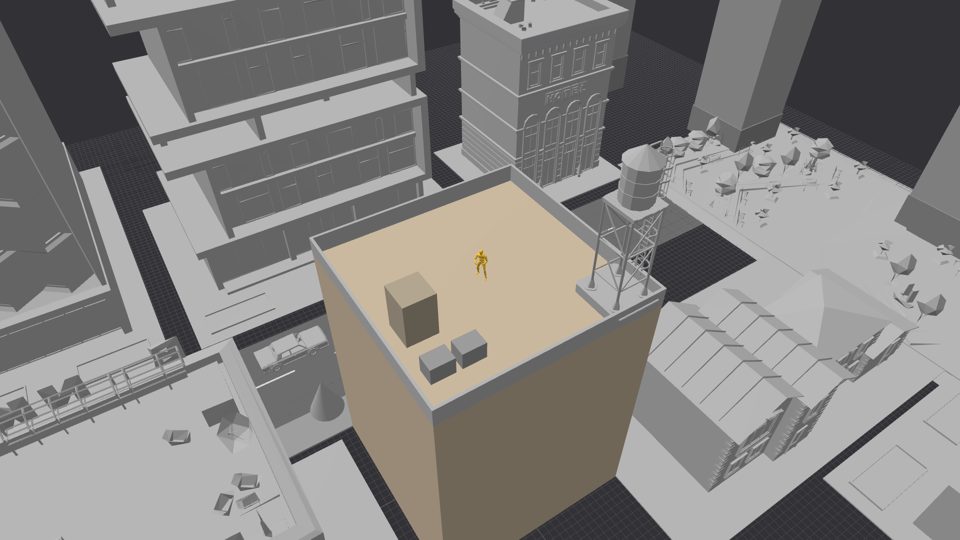 The reference clip
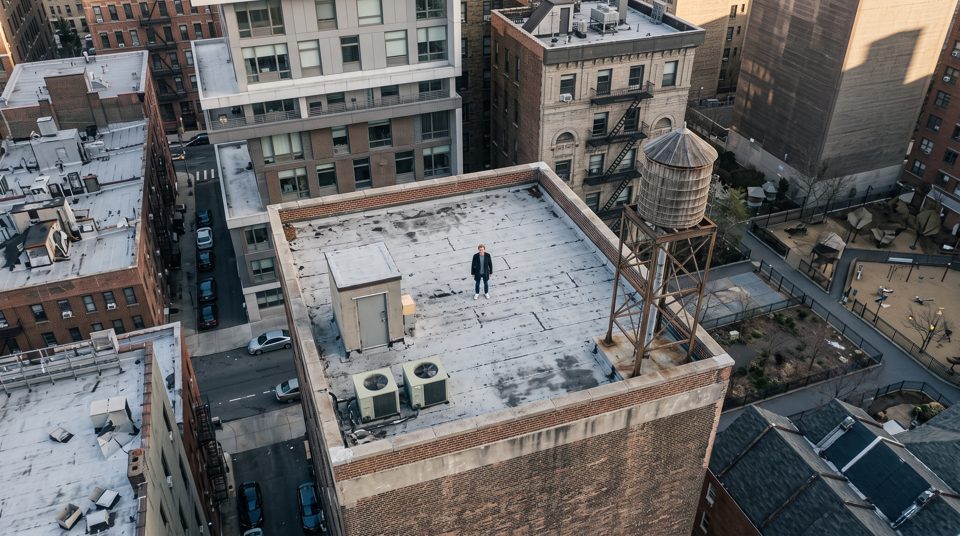 The finished shot
Why a prompt can't hold a camera move
A camera move is a path through space over time. It has a start, an end, a speed and a height at every moment. "Slow orbit, then rise above the city" leaves nearly all of that open, so the model fills the gaps with a guess.
You'll see it as a move that starts late, turns the wrong way, cuts where you wanted one take, or changes the location halfway through. Adding more words rarely fixes it, because timing and distance are hard to hold in a sentence.
What a reference clip gives the model
- The path. Where the camera travels, including height and direction.
- The timing. When each beat lands and how fast the move runs.
- The framing. How big the subject is at each moment.
- The lens feel. Wide and close reads differently from long and far away.
How to set it up
- Build a simple scene. Stand-ins are enough, as long as they are the right size and in the right place.
- Keyframe the camera. Set the start, each beat and the end. Most tools take clips of 4 to 15 seconds.
- Render the clip. Match the frame shape to your final video: 16:9, 9:16 or 1:1.
- Attach it in Seedance. Add your stills for the look of the people and the place.
- Say what each reference is for. Tell the model the clip sets the camera and the stills set the look.
Moves that need a reference most
Simple pans and push-ins often work from words alone. These usually don't:
- One-takes with several beats. Such as flying from a close-up to an aerial and back.
- Orbits with a turning subject. The character has to keep the right eyeline as the camera circles.
- FPV and over-the-top moves. These rely on exact height and speed.
- Moves tied to a location. The camera has to pass real things in the right order.
Plan the move without learning 3D
PREVIS is a browser app for exactly this step. Set keyframes yourself, or use a rig: Director, Rigged, Track, Snorricam or Orbit. There are twelve one-tap moves too, and you can record a handheld move with your phone. With Add MCP, you can simply describe the move to your AI and it sets the keyframes. See how it compares with Blender.
Questions
Can I control the camera in Seedance with a prompt alone?
For a simple move, often yes. For a shot with several beats, a prompt gives the model too much room to guess. A reference clip shows it the path and the timing.
What should a camera reference clip look like?
Simple. Grey shapes at the right size and in the right place, with the camera moving the way you want. Detail isn't needed, because your stills and prompt supply the look.
How long should the clip be?
Most AI video tools take clips of 4 to 15 seconds, so check the limit for the model and plan the move to fit.
Does this work in other video tools?
Yes, in any tool that accepts a reference video for camera movement. The clip is a standard MP4.
More guides
- A Blender alternative for Seedance
- Previs for AI video
- How to block out a shot for AI video
- 3D MCP: control a 3D scene from your AI
- A Blender MCP alternative
- Model in 3D with Claude
- How to use reference videos in Seedance
- Free previs software
- Previs software compared
- Camera move library
- Tutorials with every prompt